SnowFit
How to Create a Gym Website with SnowFit
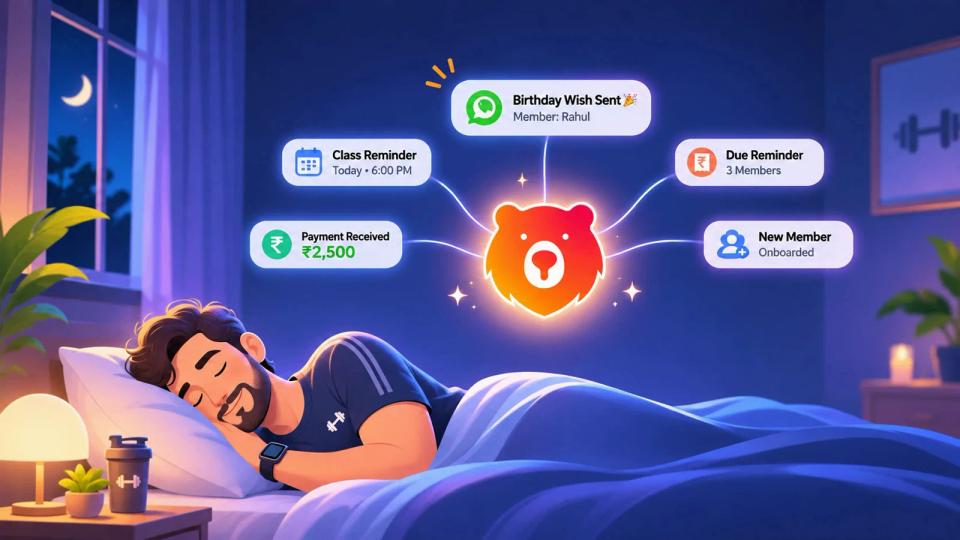
It's 10:30 on a Tuesday night. Someone three lanes from your gym is lying in bed, scrolling Google for a gym nearby. They want three answers: how much it costs, whether they'll look silly as a beginner, and how far it is. All they find is an Instagram reel from March and a phone number.
Nobody calls a gym at 10:30 at night. They close the tab.
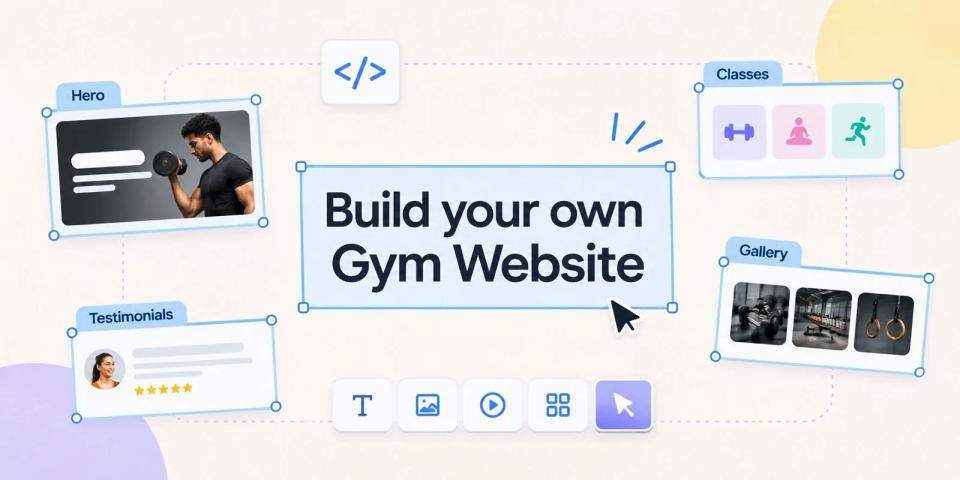
That's the gap a website fills. This guide shows how to create a gym website in SnowFit that does the talking while your front desk is shut. No code, no designer, and no developer cousin who promised to "do it next week".
How do you create a gym website with SnowFit?
You create a gym website in SnowFit by opening Snow Hub → Edit website, filling in each section with your gym's real details, checking the preview on a laptop and a phone, and publishing. Every enquiry from the site lands in Service Desk → Leads.
If you've ever waited three weeks for someone to change one price on your website, this is the opposite. You change it yourself, and it's live as you type.
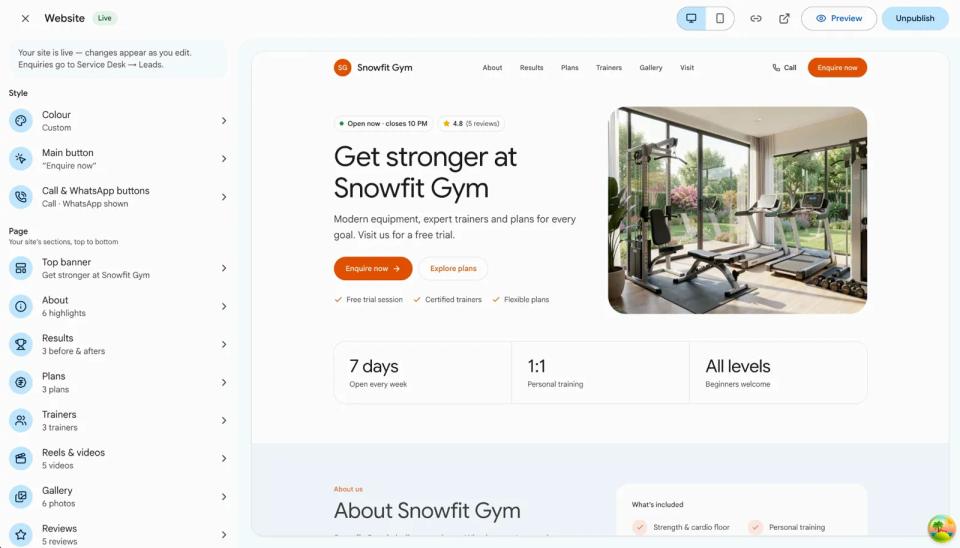
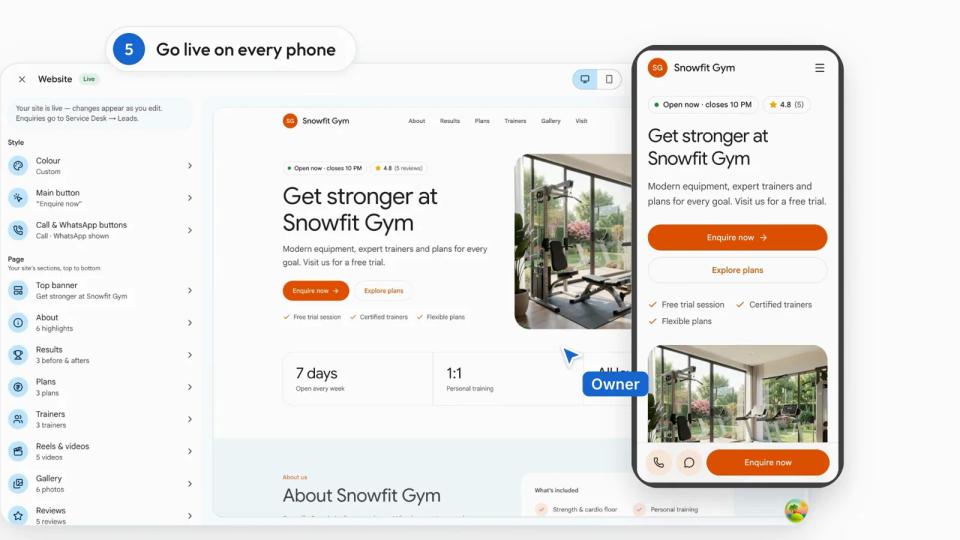
The editor lists your site's sections from top to bottom. Each one has its own switch, so you only show what's actually true.
| Section | What you add | What a visitor gets |
|---|---|---|
| Top banner | Headline, photo, up to 4 highlights | What you are, in one look |
| About | A short description, up to 12 facilities | What's actually on the floor |
| Plans | Name, price in ₹, duration, inclusions | Prices they can compare |
| Trainers | Photo, role, bio, specialities | Faces before the first visit |
| Results | Before-and-after photos, change, time | Proof from real members |
| Gallery and reels | Photos and video links | A look inside |
| FAQ | Up to 20 questions | Answers without a phone call |
| Hours & location | Map, address, opening hours | Directions and "Open now" |
The screenshots use a sample gym called Snowfit Gym. Its names, prices and photos are placeholders (please don't copy Rahul's bio).
1. Write a top banner that answers "why this gym?"
Your banner gets a few seconds. On a phone. With one thumb, while the chai goes cold.
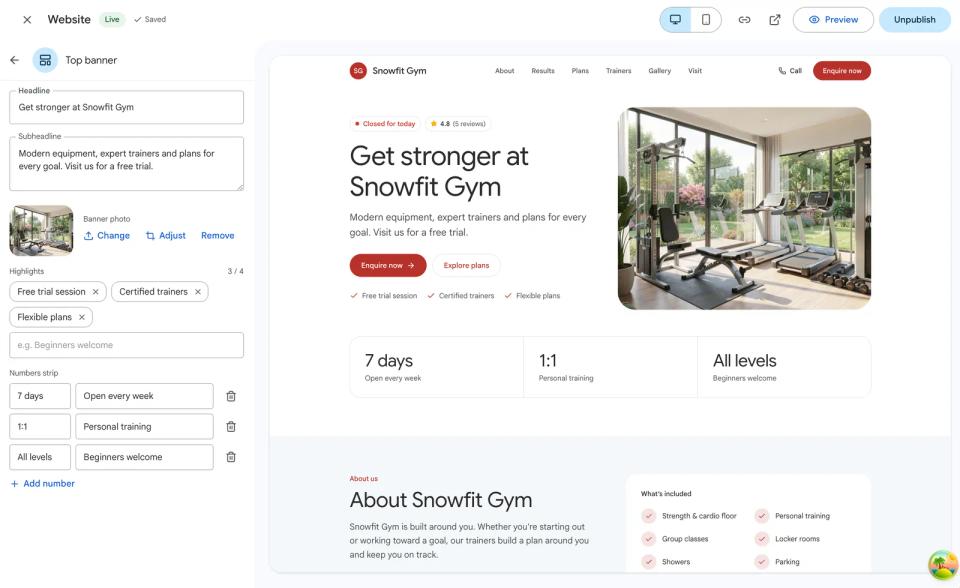
So open Top banner and say what you are, plainly. "Get stronger at Snowfit Gym" works. Nobody in Behala has ever joined a gym because the banner said "Unleash your potential".
Add up to four short highlights, like Free trial session or Certified trainers, and a numbers strip: 7 days a week, 1:1 personal training. Only the ones that are true on a Tuesday evening. If the "certified trainer" works two mornings a week, don't make him the headline.
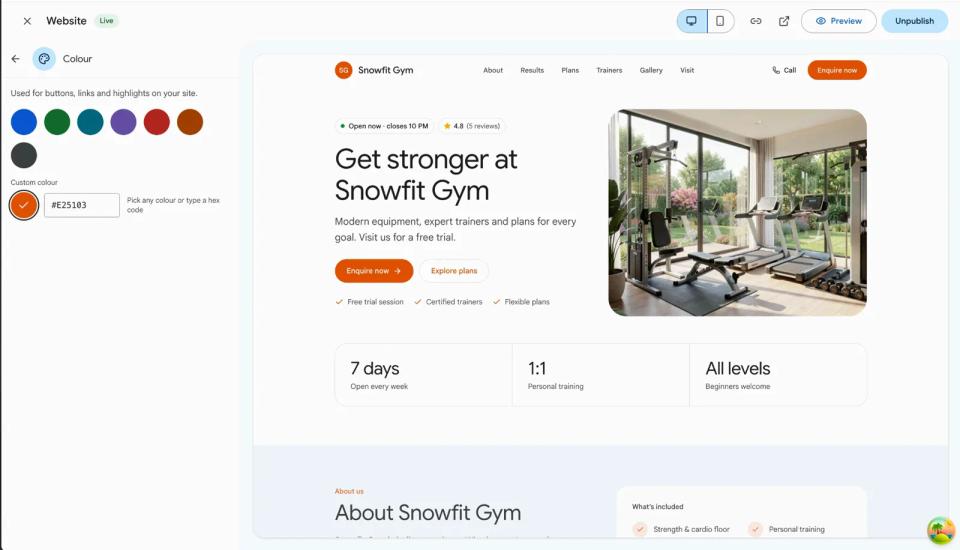
Then open Colour and pick one: a preset, or your own hex code. It runs through every button and link on the site. Pick one colour and leave it alone; three "brand colours" just look like a sale banner.
2. Say what members actually get
About is a short description plus a list of what you offer, up to 12 items: strength and cardio floor, group classes, locker rooms, parking.
Here's the blunt part. Don't list showers just because it sounds professional. If the hot water takes ten minutes to kick in, your members will tell you on day one, and then they'll tell their friends. Six honest items beat twelve hopeful ones.
3. Put your prices out in the open
Hiding your rates behind an "Enquire for price" button doesn't build mystery. It just annoys the person checking on their phone at midnight.
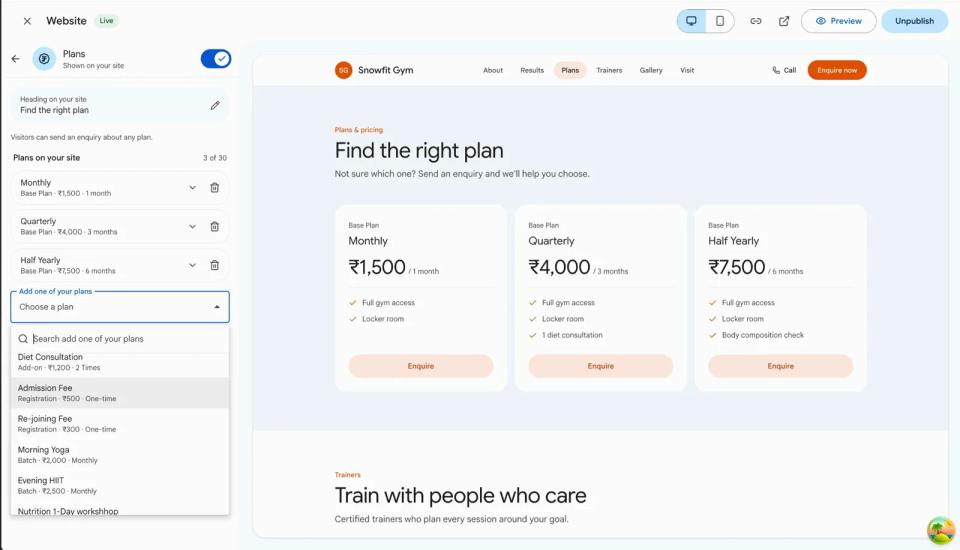
In Plans, add each membership's name, price, duration and what's included. If a quarterly plan is ₹4,000, write ₹4,000 / 3 months right next to what it covers. "₹4,000" on its own only starts another WhatsApp thread. And if you charge a one-time admission fee, show that too. Nobody likes a surprise ₹500 at the counter while they're scanning the UPI code.
You don't have to type everything twice, either: pick plans you already sell in SnowFit from the list. If one plan sells best, switch on Mark as most popular.
Will people still try to bargain at the front desk? Of course they will. But at least they'll walk in knowing the starting number.
4. Show the people, not just the equipment
People don't join a gym. They join Rahul's 6 AM batch.
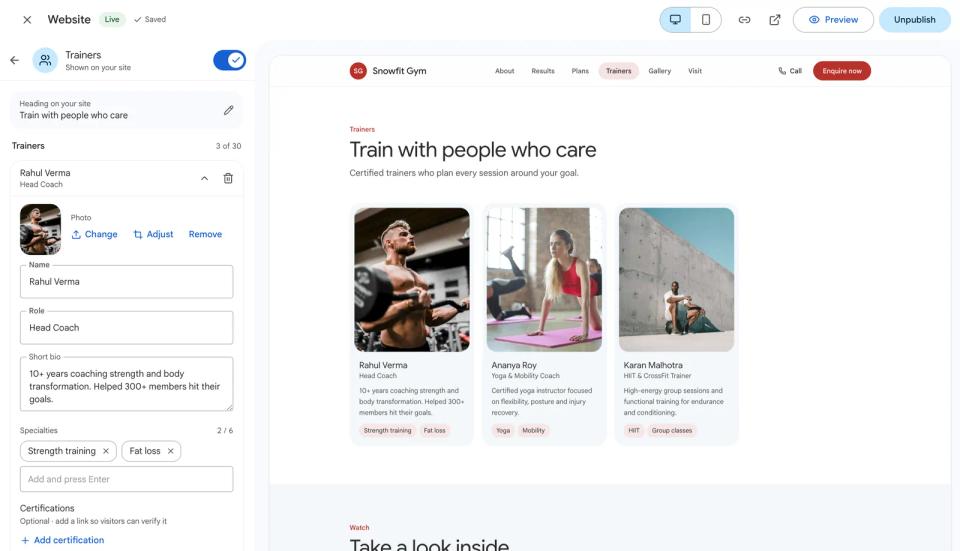
In Trainers, add each coach's photo, role, a short bio and up to six specialities. Write the bio like you'd introduce them to a new member: "10+ years coaching strength and body transformation" says something. "Passionate about fitness" says nothing; every trainer in Kolkata is passionate about fitness.
You can add certifications with a link so visitors can check them. If you can't link it, think twice before listing it.
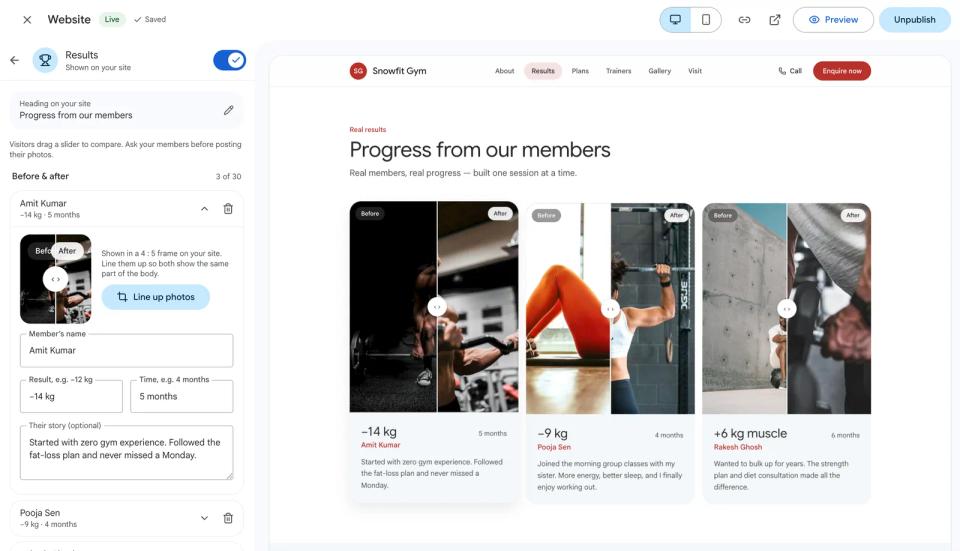
Results puts before-and-after photos side by side, with a slider visitors drag. For each member you add the change (−14 kg, say), how long it took and a line of their story. Line up photos keeps both pictures on the same part of the body, so it doesn't look like a trick.
One rule, no exceptions: ask first. And if you had to talk someone into sharing their photos, don't post them. One member's six months is a story, not a promise.
5. Show the gym as it really looks, then answer the boring questions
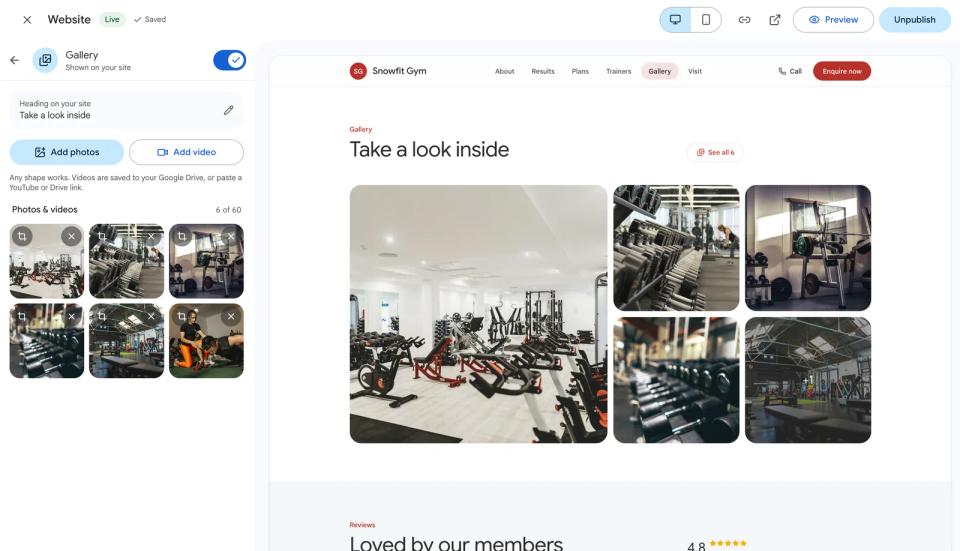
Honestly? Don't hire a professional photographer. Shoot a quick video on your phone at 7 PM, when the floor is packed, the music's loud and there's chalk on the bars. People want to see where they'll actually train, not an empty showroom at 2 in the afternoon.
The Gallery takes up to 60 photos and videos. Upload them, or paste a YouTube or Google Drive link. Reels & videos is there for the walk-throughs.
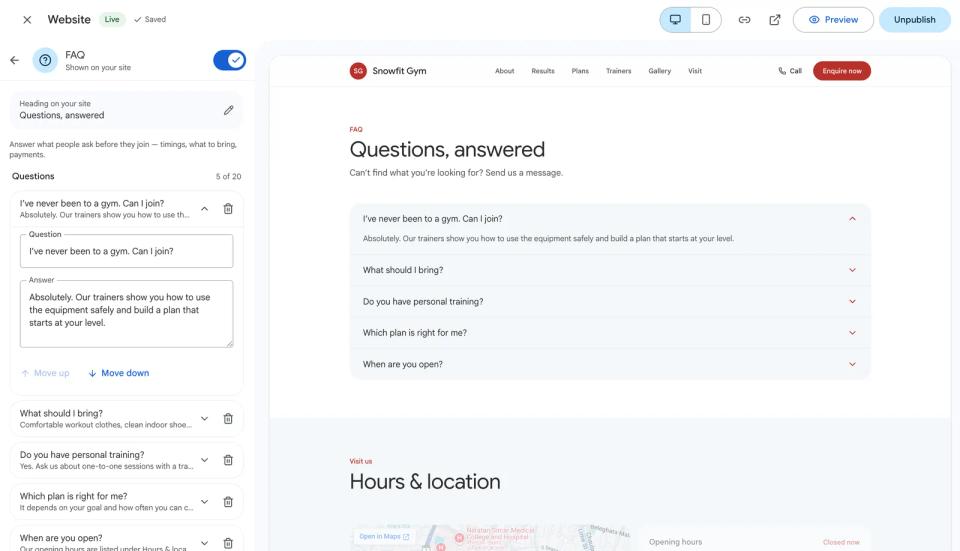
Then the FAQ. You get up to 20 questions, in any order. Don't invent clever ones. Write down what your front desk hears all day:
- Can I join if I've never been to a gym?
- What should I bring on the first day?
- Do you have personal training?
- Which plan should I take?
- Are you open on Sundays?
Every one you answer here is one less phone call during the evening rush.
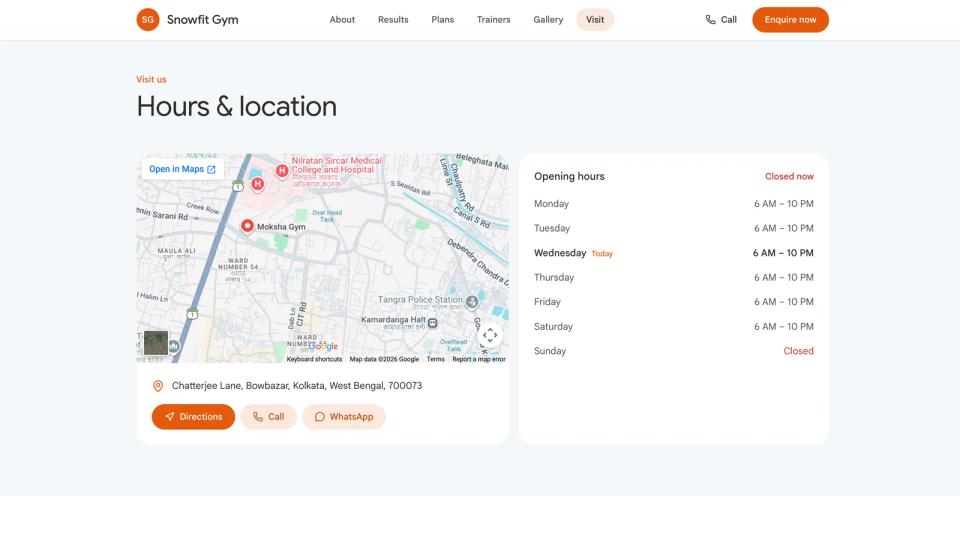
Hours & location pulls from your business settings: map, address, hours for each day, and buttons for directions, call and WhatsApp. The site shows Open now or Closed today by itself. Check the hours twice, and update them before Puja and Diwali closures. A wrong closing time sends someone across the city on a scooter for nothing, and they won't come back to check again.
6. Make it easy to reach you (on WhatsApp, mostly)
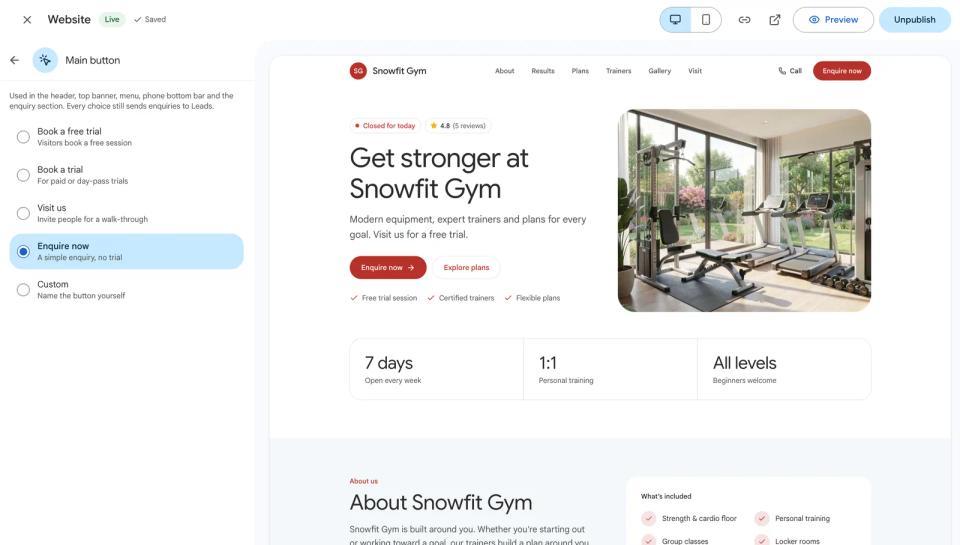
Choose a Main button: Book a free trial, Book a trial, Visit us, Enquire now or your own label. It shows up in the header, the banner, the menu, the phone's bottom bar and the enquiry section, and every option sends the enquiry to Leads.
My bias? If you run free trials, put it on the button. "Free trial" is a reason to act tonight. "Enquire now" is a reason to think about it.
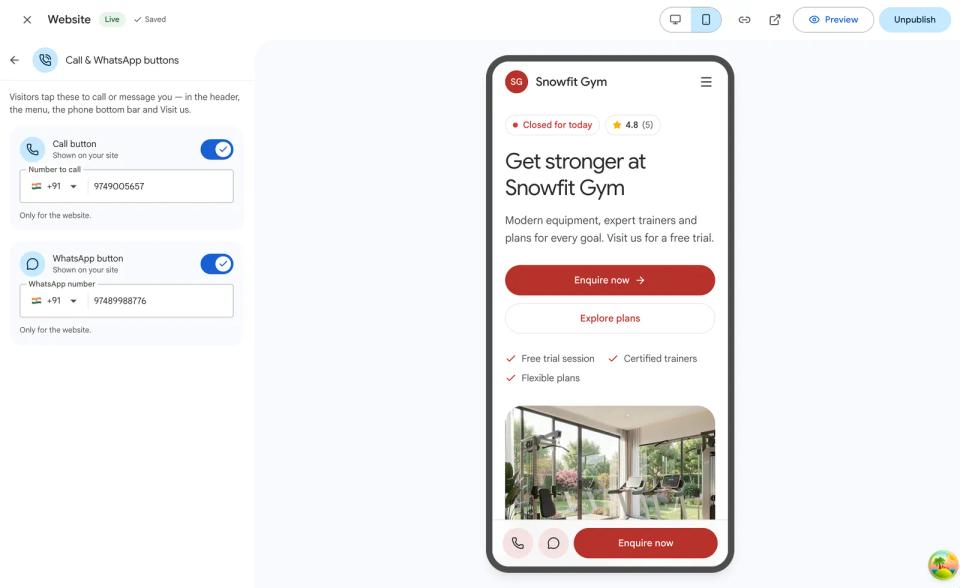
Then switch on the Call and WhatsApp buttons. On phones they sit in a bar at the bottom of the screen. That's not a nice-to-have in India. Most of your enquiries probably arrive on WhatsApp already; hardly anyone wants to phone a gym from their office desk.
The enquiry form asks for a name, mobile number, what they're interested in and how they heard about you, with an optional goal, email and message. Visitors can send it on WhatsApp instead. It all lands in Service Desk → Leads, where your team can call, follow up and convert it. Reply the same day. A lead that waits till Monday has usually joined the gym down the road.
What should you check before you publish?
Fair warning: the first setup is a bit of a chore. Typing plans, chasing trainers for a decent photo, finding the one shot of the floor where nobody's mid-rep with a weird face. Do it once, properly, then check it on your own phone:
- The gym name, headline and photos are yours, not the sample's
- Every plan shows the right price, duration and what's included
- Trainer bios, member stories, ratings and results are true and shared with permission
- The address, map pin, hours and holiday closures are current
- Call, WhatsApp and enquiry buttons use your business numbers, not your personal one
- Someone on the team checks Leads every day (decide who, by name)
- The sections run in an order a first-time visitor would follow
- Images load and have alt text that says what's in them
Then publish. Don't wait for the perfect photoshoot; you'll be waiting till next year. Once you're live, Snow Hub gives you a QR code for the front desk and shows how many people visited, enquired, called, tapped WhatsApp or asked for directions this week. That tells you more than any opinion will.
Frequently asked questions
1. Can I create a gym website without coding?
Yes. SnowFit's website editor is visual: you fill in sections such as the top banner, plans, trainers, gallery, FAQs and location, and check them in a live preview on desktop and mobile. You don't write any code.
2. What should a gym website include?
At minimum: a clear introduction, your facilities, membership plans with prices, your location and opening hours, and an easy way to contact you. Trainer profiles, real photos, member results and FAQs answer the questions that come next.
3. Should I add WhatsApp to my gym website?
Yes, if your gym answers enquiries on WhatsApp, which most Indian gyms already do. A WhatsApp button lets visitors ask about plans or book a visit without calling. Check the number, and make sure someone replies the same day.
4. How do I show membership prices on a gym website?
Show the price, the currency and the duration together, such as ₹1,500 / 1 month, and list what the plan includes. Mention any one-time admission fee too. Use your actual prices and update them when they change.
5. What photos should I use on a gym website?
Use clear, recent photos of your own gym, ideally taken at a busy hour, plus your equipment, classes and team. Get permission before posting photos or stories of identifiable members, and give each image alt text that describes what it shows.
6. Where do website enquiries go in SnowFit?
Every enquiry from a SnowFit gym website goes to Service Desk → Leads, with the visitor's name, mobile number and what they're interested in. Your team can call or WhatsApp them back from there and convert them into members.
Start with three sections tonight
You don't need every section on day one. Fill in the top banner, your plans and your hours. Publish. Add trainers, results and the FAQ over the next week, between batches. A small site that's accurate brings in more enquiries than a big one that still lists last year's prices. Start using SnowFit free.